Cricut for Beginners: How to Make Your First Cut
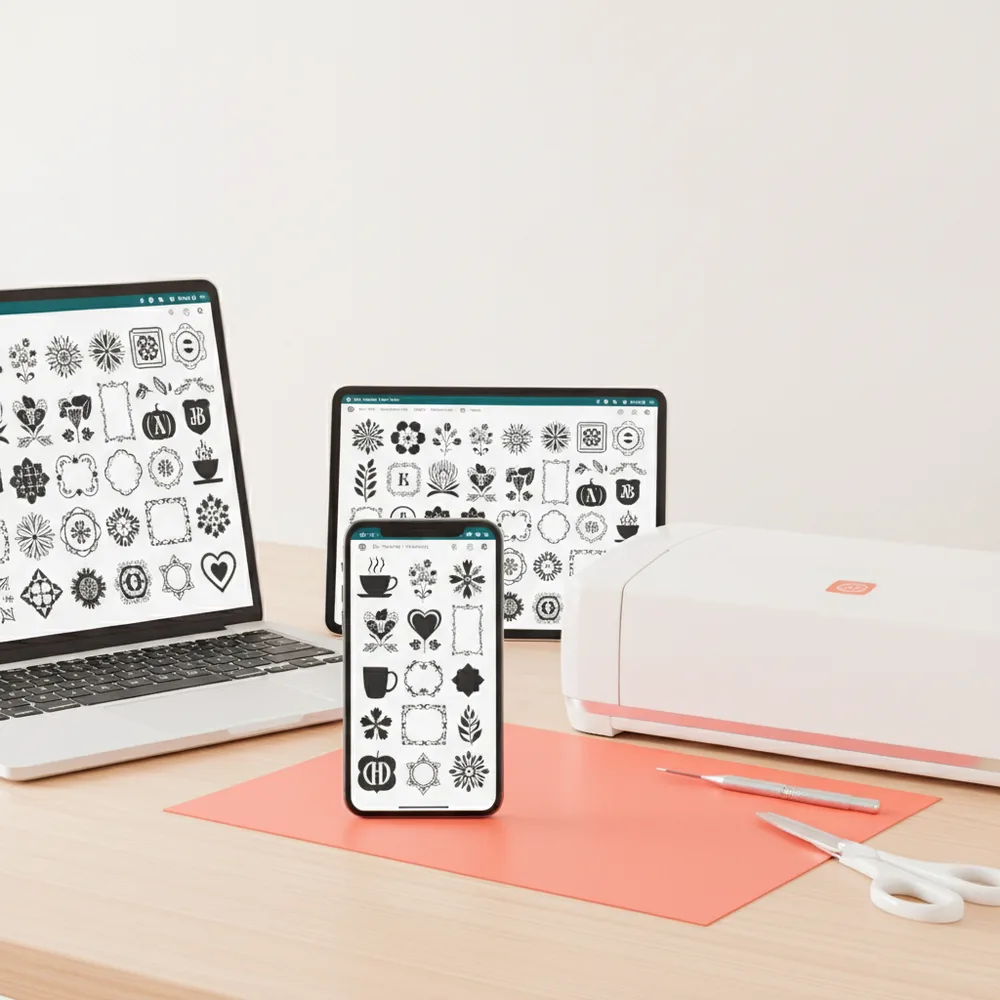
Learning a Cricut is mostly about five things: getting a file onto the canvas, sizing it, choosing the right material setting, cutting a test, and then cutting the real thing. None of them is hard on its own. This guide shows how the pieces fit together and gives you a first project you can finish today.
How hard is it, really?
A first cut is quick. Plan on about five minutes once you know the steps: download, unzip, upload, size, cut. The part that takes practice is the second and third project, when you start choosing materials, mirroring iron-on, and layering. Beginners usually run into the same short list of problems, and each has a simple fix, so a little preparation saves a lot of wasted material.
What you need for the first cut
- A cutting machine and its mat
- A fine-point blade (it normally ships with the machine)
- A few sheets of cardstock for practice
- A computer, phone or tablet with the design app installed
- One simple SVG design with big shapes, such as a star or a heart
Skip vinyl and iron-on for the very first cut. Cardstock is cheap, forgiving and needs no heat.
The first cut, step by step
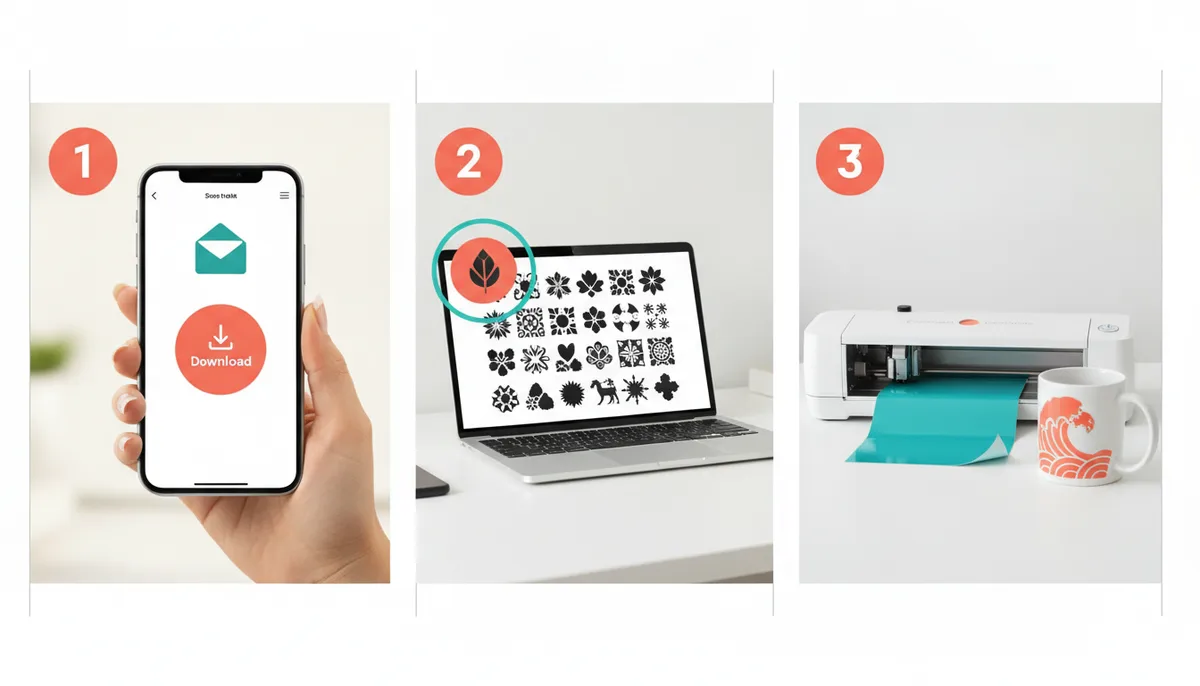
- Get the file. Download your design and unzip it so you have a `.svg` file. See how to upload an SVG to Cricut Design Space if you get stuck on this step.
- Upload it. Choose Upload, pick the SVG, save it and add it to the canvas.
- Size it. Set the width in the top bar with the lock closed. A card front is about 4 to 4.5 inches wide.
- Choose the material. Pick the cardstock setting.
- Load the mat. Put the cardstock in the corner shown on screen, press it flat, and load the mat into the machine.
- Press go. Wait for the cut to finish before unloading the mat. Peel the mat away from the paper, not the paper from the mat, to avoid curling.
The four moves that fix most problems
| Move | What it does | When to use it |
|---|---|---|
| Ungroup | Separates a group into individual parts | You want to recolor or delete one part |
| Attach | Keeps pieces in the same position on the mat | You want the cut to match the layout on screen |
| Weld | Merges overlapping shapes into one | Script words, so letters stay connected |
| Slice | Cuts one shape out of another | You need a hole or a cutout |
Materials at a glance
Start with the default setting for your material and change one thing at a time.
| Material | Typical setting | Best for |
|---|---|---|
| Cardstock | Cardstock | Cards, toppers, paper art |
| Adhesive vinyl | Vinyl | Mugs, signs, decals |
| Iron-on (HTV) | Iron-on, mirrored | T-shirts, tote bags |
| Sticker paper | Sticker, kiss cut | Stickers and labels |
| Craft foam or felt | Foam or felt | Bows and kids' crafts |
Before every cut, ask four questions. Is the design the right size? Is it mirrored if it is iron-on? Is the material in the corner shown on screen? Did you do a small test cut?
Common beginner problems
| Problem | Likely cause | Fix |
|---|---|---|
| Design is huge | Imported at original size | Set width and height |
| Cut is torn | Blade dull or pressure low | New blade, step the pressure up once |
| Letters fall apart | Not welded | Select the word and press Weld |
| Text is backwards on the shirt | Forgot to mirror iron-on | Cut again, mirrored |
| Machine cuts only a rectangle | Design hidden or on another layer | Ungroup and check the Layers panel |
| Pieces move on the mat | Not attached | Select all and Attach |
Your next projects, in order
After a paper cut, work up one step at a time:
- A vinyl decal on a mug or a notebook: no heat, one color.
- A T-shirt with iron-on: this adds mirroring and heat. The HTV beginner guide walks through it.
- Stickers with print then cut: the print then cut guide covers setup and errors.
- Layered vinyl for multi-color designs.
Finding designs worth cutting
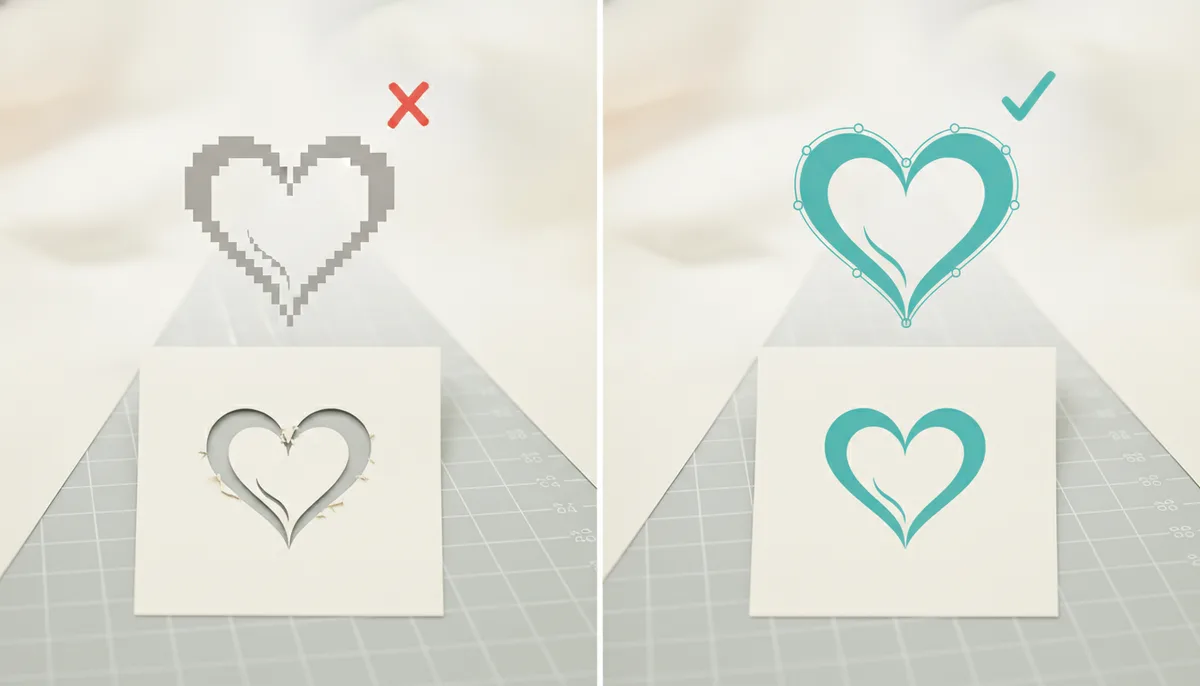
Small details cut cleanly only above about 0.1 inch, so a beginner is better off choosing bold, simple shapes. Looking at the real file before you download it also saves time. CutNest Design Library includes the CutNest Finder web app, where you search the library, filter by category and preview the actual SVG before you download one design at a time. It also includes a Start Here PDF, built around a first cut in about five minutes, and 12 project guides. Each guide lists materials, tools, a time estimate, the steps and the usual mistakes. The Design Space Beginner Guide, a 60+ page PDF with a full tour of the tools, is a separate optional add-on and is not part of the base package.
Habits that make every project easier
- Test first. A small test cut on scrap takes a minute and saves a sheet of vinyl.
- Change one thing at a time. If a cut goes wrong, adjust the pressure or the blade, not both at once, so you learn what fixed it.
- Keep your mat sticky and your blade fresh. Most tearing comes from a worn blade or a mat that has lost its grip.
- Write down what worked. A note of the material, setting and size for each project turns into your own cheat sheet.
- Label your folders. One folder per category and one file per design makes finding things painless.
Know your file types
Most cutting software takes SVG. Some older or basic editions only accept DXF. If you use more than one machine, see which files work on Cricut and Silhouette.
CutNest is not affiliated with Cricut. Brand names appear only to describe compatibility and the topic searched.