Fonts for Cricut: How to Get, Install and Choose Fonts for Cutting
The fonts that are best for cutting are not always the prettiest on screen: choose solid, even strokes, then install them correctly and check the license before you sell anything. This guide covers where fonts come from, how to get them into your design app, how to choose ones that cut well, and what an open license lets you do.
How fonts get into your design app
Your design app lists the fonts that are built in and the fonts installed on your computer. To add more:
- Download the font as a ZIP and unzip it. You are looking for `.ttf` or `.otf` files.
- Install them. On Windows, right-click the file and choose Install. On a Mac, double-click and choose Install Font.
- Restart the design app so it reads the new list.
- Find your font in the list of system fonts and type your text.
The same installed fonts work in other cutting software that reads system fonts.
What makes a font cut well
| Trait | Why it matters |
|---|---|
| Even stroke width | No thin areas that tear on vinyl |
| Rounded or soft joins | Weeds more easily around corners |
| Open counters (the holes in a, e, o) | Small holes are hard to weed |
| A bold or heavy weight | Holds together on small sizes |
| Connected scripts, or welded after | Letters cut as one piece |
Fonts with hairlines or very tight letter spacing are fine for print, but they are frustrating to cut. If a font is too fine, make it bigger or choose a bolder weight.
Make lettering cut as a word
Type the text, then adjust the letter spacing. For scripts, make the letters overlap slightly and weld them so the word is a single shape. For iron-on, mirror the design before cutting. For separate letters that must keep their spacing, attach them.
Choosing fonts by project
| Project | Good font traits |
|---|---|
| T-shirt phrase | Bold sans serif, or a chunky script welded as one word |
| Mug or tumbler name | A rounded, readable script, at least 0.15 inch tall |
| Wood sign | A farmhouse or slab style that reads at a distance |
| Wedding or place cards | An elegant serif or a fine script on cardstock |
| Kids' items | Rounded, friendly fonts |
| Monogram | A font with clear, balanced capitals |
What an open license means
Fonts differ in what you may do with them. Three common cases:
- Personal use only. You may not use the font on products you sell.
- Open licenses such as the SIL Open Font License (OFL) or Apache 2.0. These allow commercial use, including on products you make and sell, under their own conditions. The OFL, for example, lets you use fonts on commercial projects but not sell the font file by itself.
- Commercial licenses you buy per font. The license tells you what is allowed.
Whichever you use, keep the license text, and keep a note of which font you used on which product. If you are unsure, read the license that comes with the font, or ask the creator.
A collection with the license included
CutNest Design Library includes an open-license font collection in its package. It has 1,206 font families in 2,015 font files: 1,173 under the OFL and 33 under Apache 2.0. The families are sorted into seven style ZIPs: Clean Sans, Display & Bold, Farmhouse & Rustic, Elegant Serif, Script & Handwritten, Kids & Rounded, and Monogram-friendly (a cross-listed subset). Each family comes with its original license text, and each ZIP has a licenses read-me. As the OFL requires, the fonts are delivered as part of the package, not sold on their own.
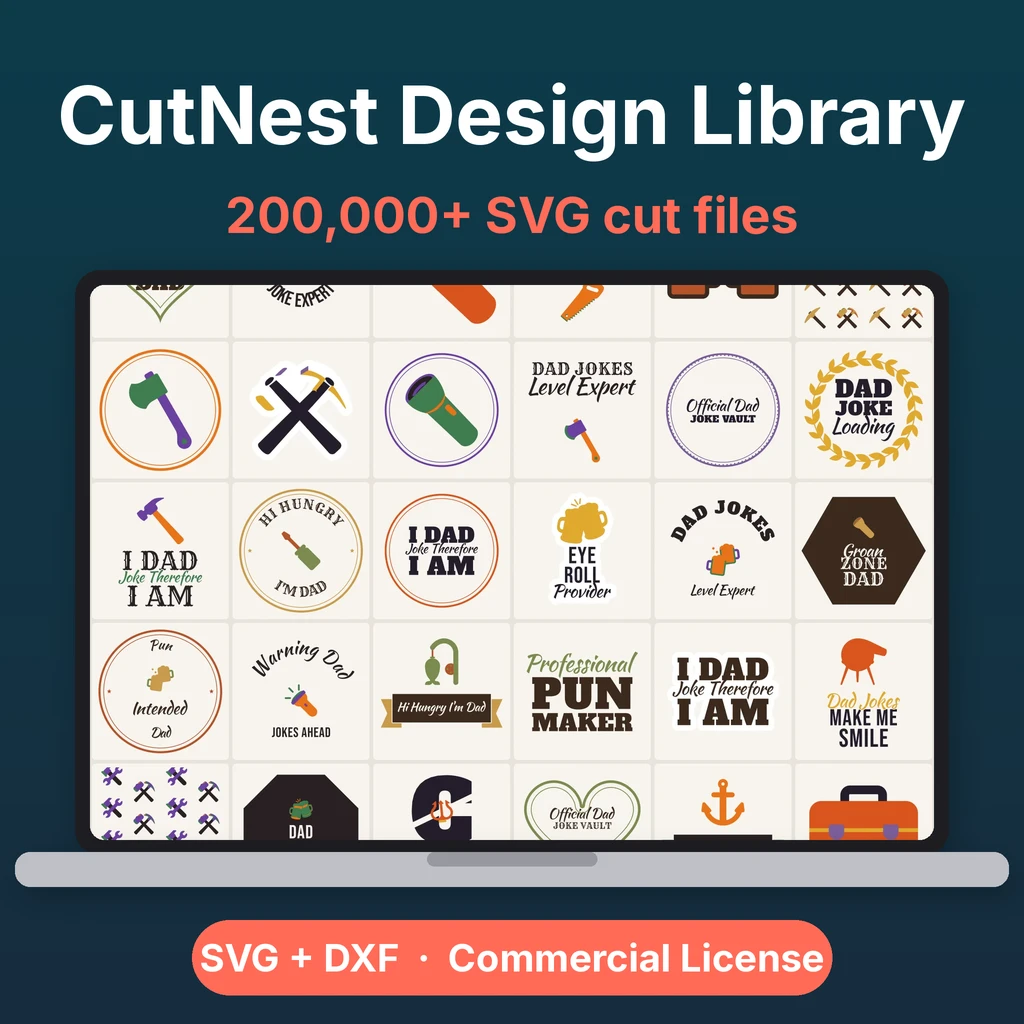
The package also includes 12 project guides that use lettering, such as mugs, wood signs and T-shirts, and the CutNest Commercial License for the cut-file designs. The two work together: the license covers the designs, the fonts keep their own licenses, and you keep track of both.
Test the font before the real cut
Type a short word in the font you picked, set it to the real size, and cut it on scrap. Check three things: do the counters open when you weed, do thin parts survive, and does the spacing look even once the letters are on the material? A thirty-second test is cheaper than a ruined sheet of iron-on. Keep a note of fonts that worked well for each material so you can return to them.
A quick workflow for lettering projects
- Choose a font from the style that matches your project.
- Type your text and set the size from the real blank.
- Adjust spacing and weld script letters.
- Mirror for iron-on, then run a test cut on scrap.
- Cut, weed and apply.
Common font problems
| Problem | Likely cause | Fix |
|---|---|---|
| Font not in the list | App was open during install | Restart the app |
| Letters fall apart | Not welded | Select the word and weld |
| Thin parts tear | Font too fine for vinyl | Use a bolder font or enlarge |
| Letters are too close | Default spacing | Increase spacing a little |
| Spaces between letters when cutting | Letters are separate shapes | Attach or weld, as needed |
Next steps
If you are new to cutting, begin with Cricut for beginners: your first project. To add designs to go with your lettering, see how to upload an SVG to Cricut Design Space. To decide whether a library suits you better than single files, read SVG library vs single SVG files. Planning to sell? Start with Cricut projects to sell.
CutNest is not affiliated with Cricut. Brand names appear only to describe compatibility and the topic searched.